1. Project Overview
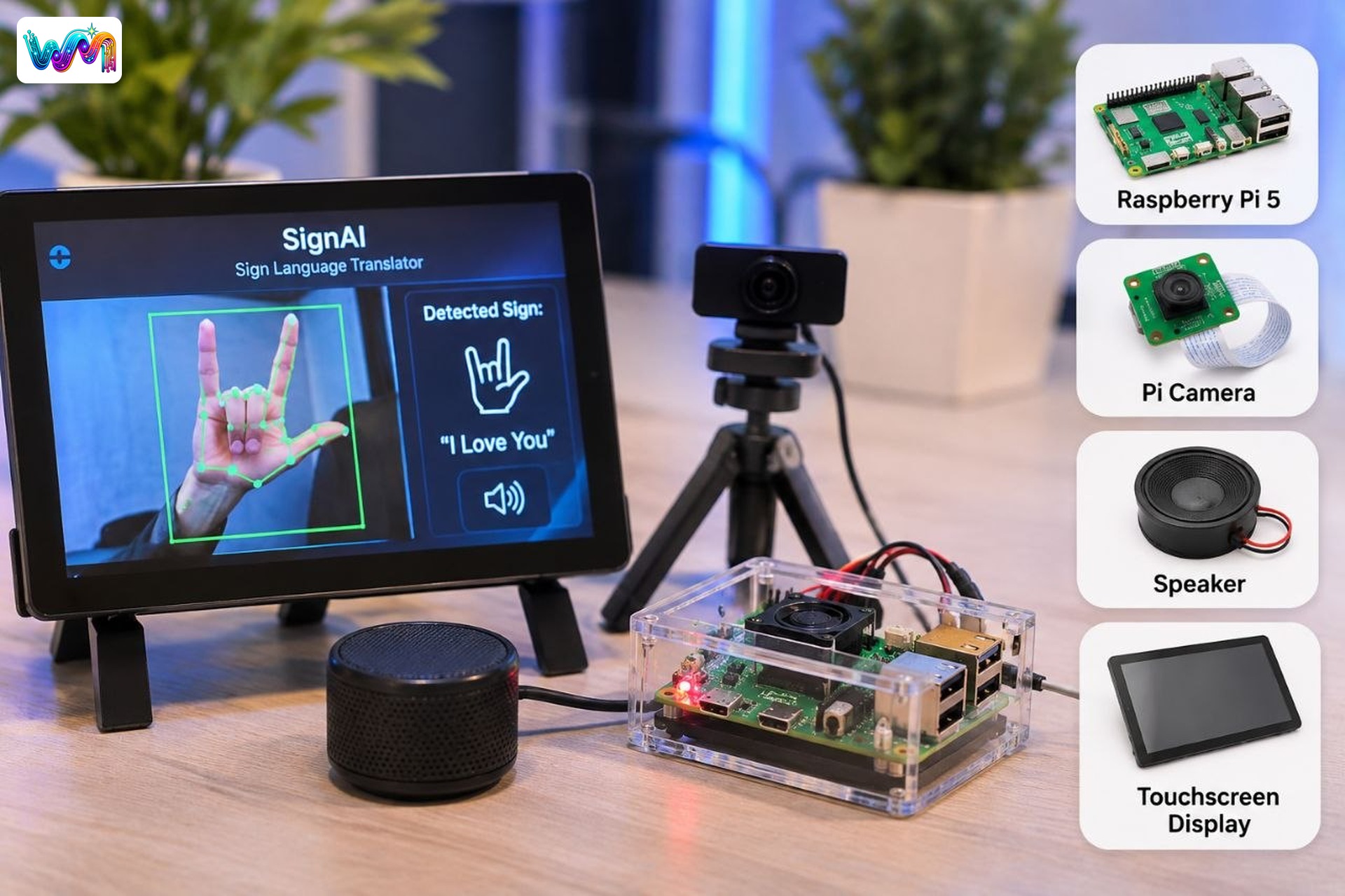
A small device that watches your hand with a camera and says a phrase out loud when it recognises a gesture. The Pi 5 reads the camera, MediaPipe finds the hand gesture, and a USB speaker speaks the phrase.
This is a demo with the 7 gestures built into the MediaPipe Gesture Recognizer (for example Open_Palm = "Hello"). It is not a full sign language translator. Reading a real sign language alphabet needs a custom trained model. The design is suggested and has not been tested on a Pi 5 yet. The cover image is an illustration; this guide uses a normal monitor.
2. How It Works
The camera takes a picture many times a second. MediaPipe returns a gesture name and a score. If the score is 70% or more and the same gesture stays for 8 pictures in a row, the program speaks the phrase with espeak-ng. The same phrase cannot repeat for 2 seconds. The numbers 0.70, 8 and 2 are starting values and are not verified.
3. Components Required
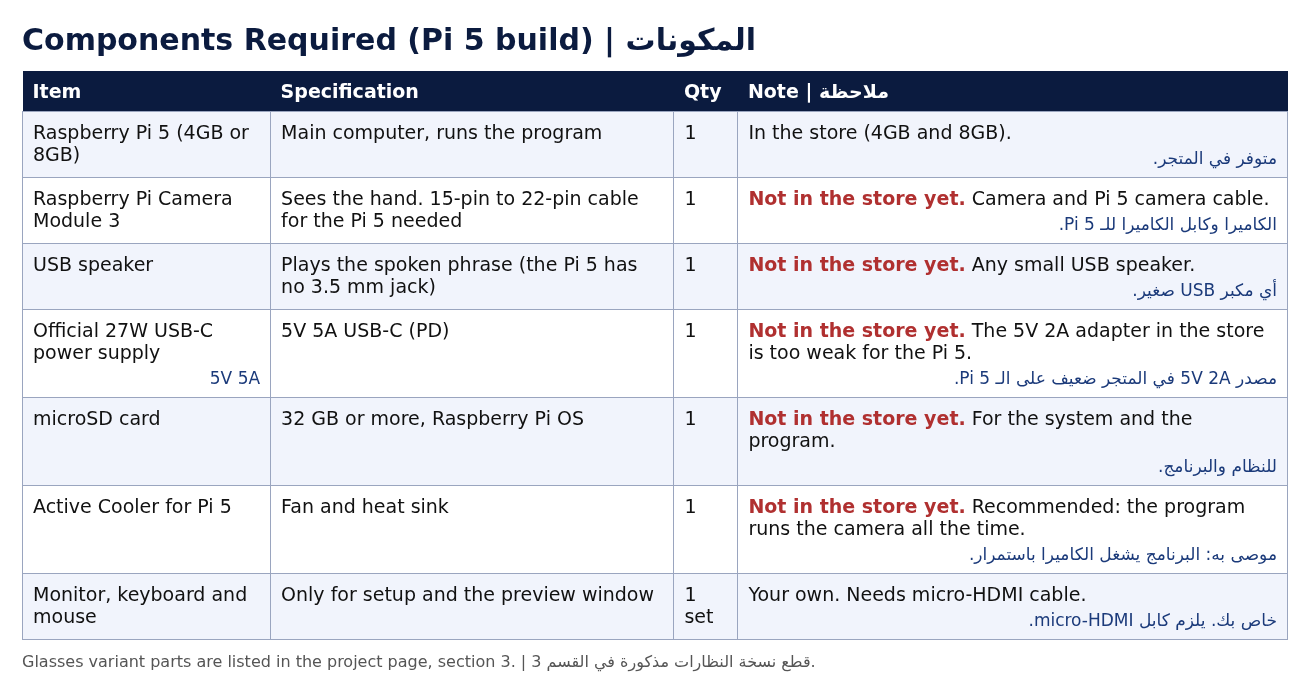
- Raspberry Pi 5 (4GB or 8GB) x 1 - 🛒 Add to cart (4GB) - 🛒 Add to cart (8GB)
- Raspberry Pi Camera Module 3 with the Pi 5 camera cable x 1 - not in the store yet, to be added
- USB speaker x 1 - not in the store yet, to be added
- Official 27W USB-C power supply (5V 5A) x 1 - not in the store yet, to be added (the 5V 2A adapter in the store is too weak for a Pi 5)
- microSD card, 32 GB or more x 1 - not in the store yet, to be added
- Active Cooler for Pi 5 (recommended) x 1 - not in the store yet, to be added
- Monitor, keyboard, mouse and micro-HDMI cable for setup - your own
Click here to open the components table
4. Circuit Diagram
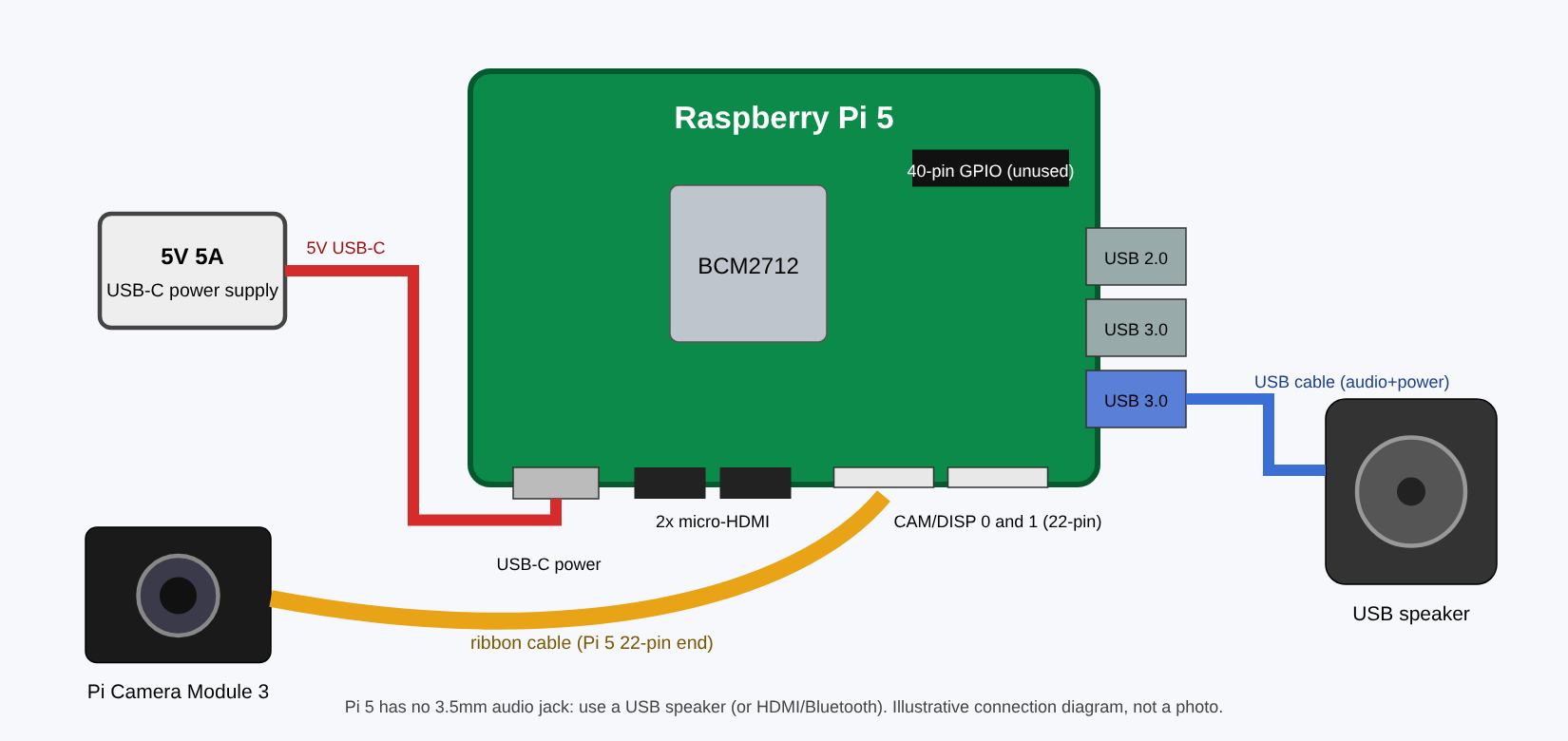
There is no breadboard. The camera goes to the CAM/DISP 0 connector with the ribbon cable, the USB speaker to a USB port and the power supply to the USB-C port. The 40-pin GPIO is not used.
Click here to open the connection diagram
This is a teaching diagram drawn by WadiMakers, not a photo of a tested build. Red = power, yellow = camera cable, blue = USB.
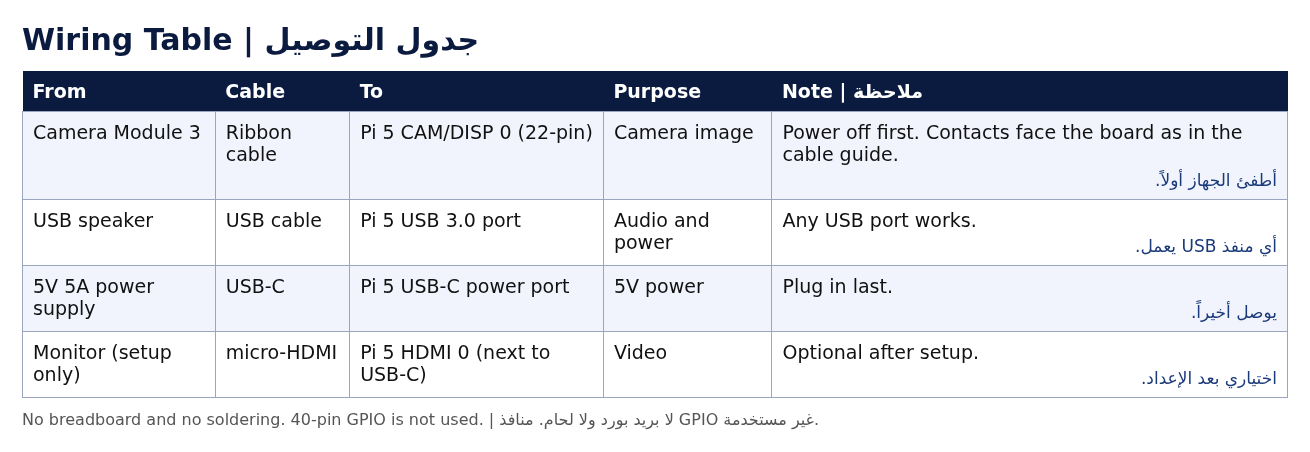
5. Wiring Table
Power off the Pi before you plug or unplug the camera cable.
Click here to open the wiring table
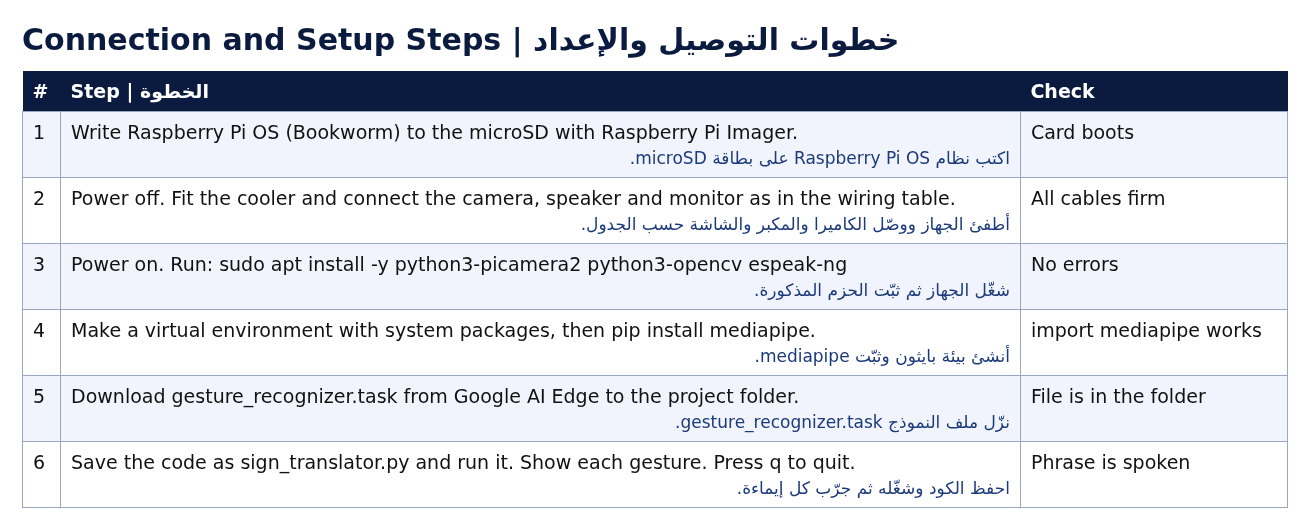
6. Connection Steps
- Write Raspberry Pi OS (Bookworm) to the microSD card with Raspberry Pi Imager.
- Power off. Fit the cooler, connect the camera, the speaker and the monitor as in the wiring table.
- Power on and install the packages: sudo apt install -y python3-picamera2 python3-opencv espeak-ng
- Make a virtual environment that can see the system packages (python3 -m venv --system-site-packages venv), activate it, then run pip install mediapipe.
- Download gesture_recognizer.task from the Google AI Edge page for the MediaPipe Gesture Recognizer and put it in the project folder.
- Save the code from section 7 as sign_translator.py and run it with python sign_translator.py. Show your hand to the camera. Press q to quit.
Click here to open the connection steps table
7. Source Code
File: sign_translator.py. Python 3 on Raspberry Pi OS Bookworm, using Picamera2, OpenCV, MediaPipe Tasks and espeak-ng. Written by WadiMakers and not run on a Pi 5 yet. Check before you rely on it: that mediapipe installs, the camera colour order, the gesture names in your mediapipe version, and the sound.
# sign_translator.py
# Raspberry Pi 5 + Pi Camera Module 3 + MediaPipe Gesture Recognizer + espeak-ng
# Demo vocabulary: the 7 built-in MediaPipe gestures mapped to spoken phrases.
import subprocess
import time
import cv2
import mediapipe as mp
from picamera2 import Picamera2
MODEL_PATH = "gesture_recognizer.task"
MIN_SCORE = 0.70 # minimum confidence for a gesture
STABLE_FRAMES = 8 # same gesture for this many frames before speaking
COOLDOWN_S = 2.0 # seconds before the same phrase can be spoken again
PHRASES = {
"Open_Palm": "Hello",
"Thumb_Up": "Yes",
"Thumb_Down": "No",
"Victory": "Peace",
"ILoveYou": "I love you",
"Pointing_Up": "Wait",
"Closed_Fist": "Stop",
}
def speak(text):
subprocess.Popen(["espeak-ng", "-v", "en", text])
BaseOptions = mp.tasks.BaseOptions
GestureRecognizer = mp.tasks.vision.GestureRecognizer
GestureRecognizerOptions = mp.tasks.vision.GestureRecognizerOptions
RunningMode = mp.tasks.vision.RunningMode
options = GestureRecognizerOptions(
base_options=BaseOptions(model_asset_path=MODEL_PATH),
running_mode=RunningMode.VIDEO,
num_hands=1,
)
camera = Picamera2()
camera.configure(
camera.create_preview_configuration(main={"format": "RGB888", "size": (640, 480)})
)
camera.start()
last_gesture = None
stable_count = 0
last_spoken = {}
start = time.monotonic()
with GestureRecognizer.create_from_options(options) as recognizer:
while True:
frame = camera.capture_array() # RGB888 in Picamera2 is B,G,R order (OpenCV order)
rgb = cv2.cvtColor(frame, cv2.COLOR_BGR2RGB)
mp_image = mp.Image(image_format=mp.ImageFormat.SRGB, data=rgb)
timestamp_ms = int((time.monotonic() - start) * 1000)
result = recognizer.recognize_for_video(mp_image, timestamp_ms)
gesture = None
if result.gestures:
top = result.gestures[0][0]
if top.score >= MIN_SCORE and top.category_name in PHRASES:
gesture = top.category_name
if gesture is not None and gesture == last_gesture:
stable_count += 1
else:
stable_count = 1 if gesture is not None else 0
last_gesture = gesture
if gesture is not None and stable_count == STABLE_FRAMES:
now = time.monotonic()
if now - last_spoken.get(gesture, 0) >= COOLDOWN_S:
text = PHRASES[gesture]
print("Gesture:", gesture, "->", text)
speak(text)
last_spoken[gesture] = now
label = gesture if gesture else "-"
view = frame
cv2.putText(view, label, (10, 30), cv2.FONT_HERSHEY_SIMPLEX, 1, (0, 255, 0), 2)
cv2.imshow("Sign Translator", view)
if cv2.waitKey(1) & 0xFF == ord("q"):
break
camera.stop()
cv2.destroyAllWindows()
8. Testing & Troubleshooting
- Camera: run rpicam-hello first. No picture means check the ribbon cable.
- Gestures: try Open_Palm, Thumb_Up, Thumb_Down, Victory, ILoveYou, Pointing_Up and Closed_Fist. Each should speak once.
- No sound: test with espeak-ng "hello" and check the USB speaker is the default output.
- Wrong or no gesture: better light, hand 30 to 60 cm away and still. Lower MIN_SCORE a little if needed. If a phrase repeats, raise COOLDOWN_S.
- Slow or hot: fit the Active Cooler and use the 5V 5A supply.
9. Safety and Sources
Nothing here is verified until it is built and tested on a Pi 5. This demo is not a real sign language translator and must not be used for important communication. Use the 5V 5A supply, do not unplug the camera while the Pi is on, and do not save pictures of people without their consent. Sources: Google AI Edge MediaPipe Gesture Recognizer documentation. The code, tables and diagram were made by WadiMakers.
Comments & discussion (0)